How to send a screenshot to Claude Code or Cursor on Mac
To give Claude Code a screenshot on a Mac, copy it with ⌘⌃⇧4 and paste it into the session with Ctrl+V, or type the image’s file path; in Cursor, paste the image into the chat. To skip copying altogether, connect an MCP screenshot server such as Zinxo’s, so the agent can fetch, search or take the screenshot itself.
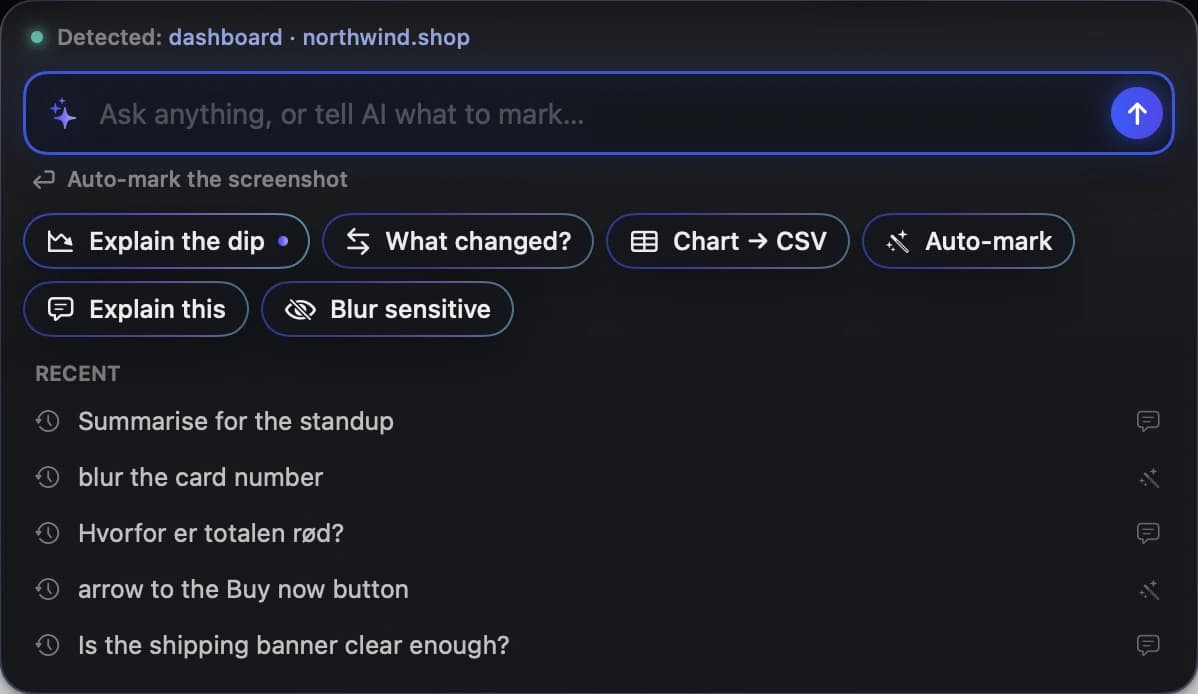
1. Paste from the clipboard
⌘⌃⇧4 copies a screenshot to the clipboard instead of saving it. In Claude Code, paste with Ctrl+V (not ⌘V, which pastes text in most terminals). In Cursor’s chat, ⌘V works. Some terminals and tmux setups don’t forward image pastes; if nothing happens, use a file path.
2. Drag and drop the file
Drag a screenshot file from Finder into the terminal or the Cursor chat. The agent sees the path and reads the image.
3. Type or paste the file path
Claude Code reads any image path you mention, e.g. “look at ~/Desktop/Screenshot 2026-09-29 at 14.12.08.png”. Quote paths with spaces. This is the most reliable method, because it’s just text.
4. Let the agent fetch screenshots itself (MCP)
With an MCP server that exposes screenshots you don’t move files at all: say “what’s wrong on my screen?” and the agent calls a tool, gets the image and reads it. Zinxo ships one built in; add it to Claude Code once:
claude mcp add --scope user zinxo -- ~/Applications/Zinxo.app/Contents/MacOS/Zinxo mcpThe fastest everyday setup with Zinxo
- Add the Zinxo MCP server once (Settings → Agents → Add to Claude Code, or the command above). For Cursor, add the same server to ~/.cursor/mcp.json.
- Ask the agent “look at my latest screenshot” or “search my screenshots for the checkout error”. It calls get_screenshot or search_screenshots.
- To let the agent take a fresh screenshot, turn on Settings → Agents → Allow AI agents to take screenshots, and approve the program once.
- Prefer pushing? ⌥⇧S captures an area and sends the image path plus context (app, window title, URL) to a Claude Code or Codex session in cmux, or copies it for any other terminal.
Tips
Crop to what matters: smaller images are cheaper and the model focuses better. Annotate before sending (an arrow to the bug beats a paragraph). Redact API keys and customer emails first: once they’re in a model context, they’re in your logs too.
Related guides
- Give your AI agent eyes: screenshots over MCP
- Redact screenshots before you share them with AI
- Turn a screenshot into a Jira ticket in 10 seconds