How to blur sensitive info in a screenshot on Mac
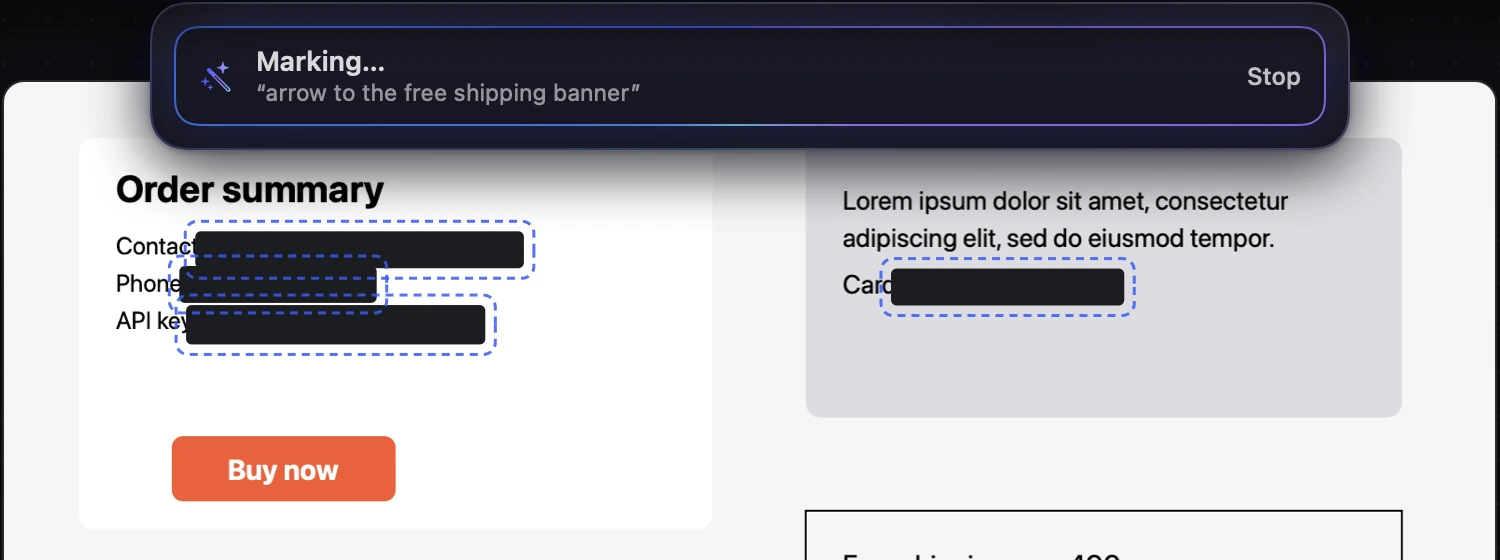
To hide sensitive information in a Mac screenshot, cover it with a solid bar or strong pixelation rather than a light blur, which can sometimes be reversed on short text. Preview has no blur tool (draw a filled rectangle instead); Zinxo scans every capture on-device and suggests solid bars over emails, phone numbers, card numbers, API keys and tokens, and its Redact tool (P) pixelates or blacks out anything else.
In Preview (free)
- Open the screenshot in Preview and show the Markup toolbar.
- Draw a rectangle over the text, set its fill colour to black and its border to none.
- Export as PNG (flattening the markup) before you share it.
With Zinxo
- Capture as usual (⌘⇧4) and open the editor from the thumbnail.
- On-device text recognition pre-suggests solid bars over emails, phone numbers, card and account numbers, API keys, JWTs and tokens. Keep or discard them.
- Press P (Redact) and drag over anything else, such as names, addresses or faces. Choose solid bar or pixelate.
- For secrets, use Redact on the thumbnail’s More menu: it flattens the image and deletes the unredacted original from disk.
- Copy (⇧⌘C) and share.
Blur vs pixelate vs solid bar
A light Gaussian blur on a short string (a key, a number) can sometimes be reconstructed. Heavy pixelation is better; a solid bar is safest. Whatever you use, rotate any API key that was ever shared in the clear.
Zinxo: $29 once (regular $39), 1 Mac, 1 year of updatesCapture, hand-drawn markup, 3D mockups, scrolling capture, recording to MP4 or GIF, OCR search and agent handoff in one native Mac app. One price, no subscription.