How to record your screen with clicks shown on Mac
To record your Mac screen with clicks shown for free, press ⌘⇧5, open Options and turn on Show Mouse Clicks. To also show keystrokes, trim, zoom and export a GIF, use Zinxo: press ⌥⇧R, turn on Clicks (and Keys) in the control bar, record, and export MP4 or GIF from the built-in video editor.
The built-in way (⌘⇧5)
- Press ⌘⇧5 and pick Record Entire Screen or Record Selected Portion.
- Options → Show Mouse Clicks.
- Click Record; stop from the menu bar. The file is a .mov with no editing beyond QuickTime’s trim.
With Zinxo
- Press ⌥⇧R. Hover to pick a window or display, or drag an area; pick an aspect ratio (16:9, 4:3, 1:1, 9:16) if you need one.
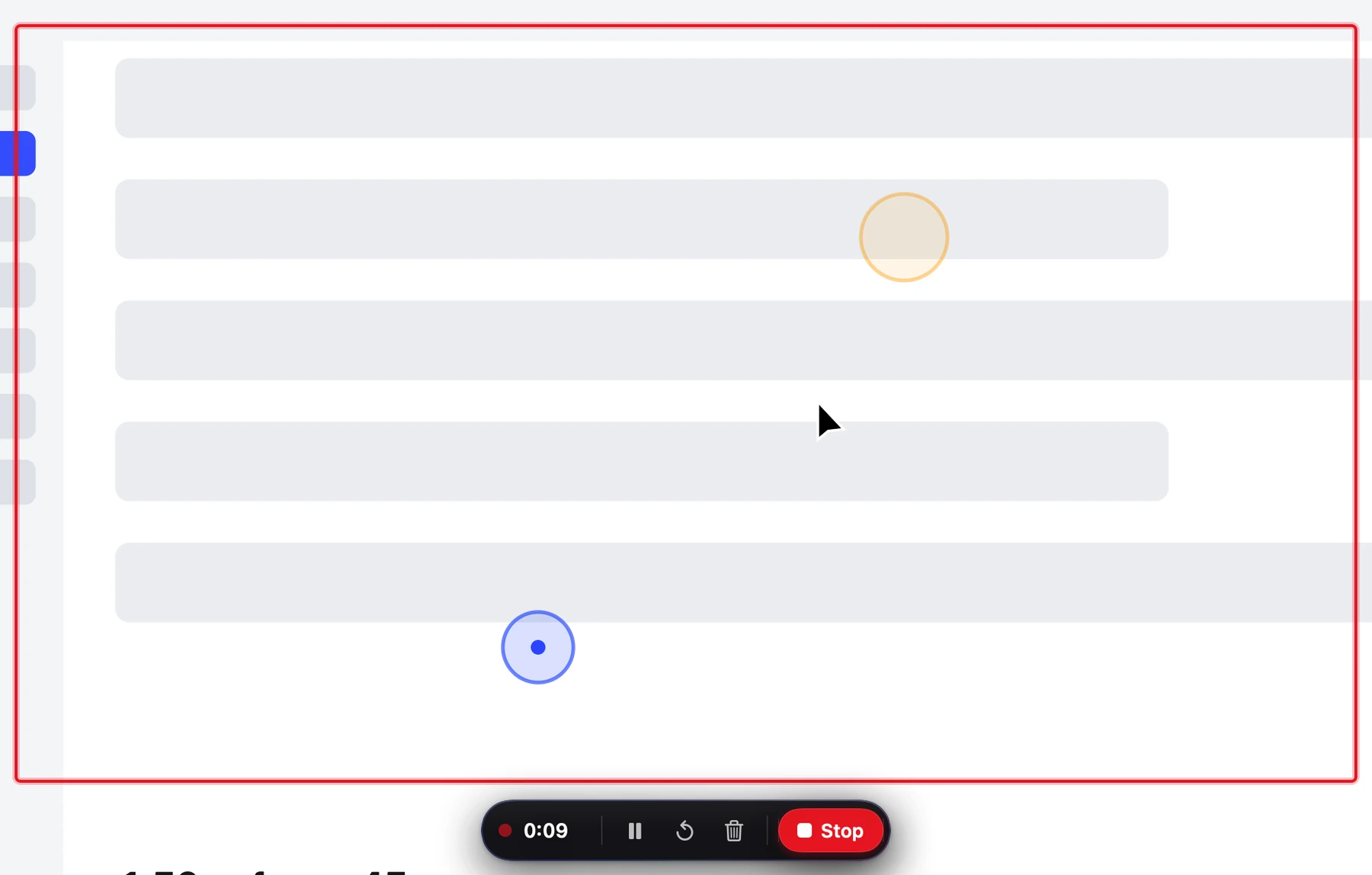
- In the control bar, turn on Clicks (a blue ripple per click, orange for right-click) and Keys (a chip with shortcuts or typed text; needs Accessibility). Add Mic or system Sound if you want audio.
- Press ↩ to start after a 3-2-1 countdown. Pause, restart or stop from the pill under the region, or press ⌥⇧R again.
- In the video editor, trim, cut a middle section, change speed (1×, 1.5×, 2×), crop, and add text or zoom overlays.
- Export MP4 (High, Balanced or Small) or GIF (10–20 fps, 480–1000 px), then Copy to paste the file into Slack or Mail.
Built-in vs Zinxo
| macOS ⌘⇧5 | Zinxo | |
|---|---|---|
| Show clicks | Yes | Yes (ripples drawn into the video) |
| Show keystrokes | No | Yes |
| Trim / cut / speed / crop | Trim only (QuickTime) | Yes |
| Text and zoom overlays | No | Yes |
| Export GIF | No | Yes |
| Output | .mov | H.264 MP4, 30 or 60 fps |
Zinxo: $29 once (regular $39), 1 Mac, 1 year of updatesCapture, hand-drawn markup, 3D mockups, scrolling capture, recording to MP4 or GIF, OCR search and agent handoff in one native Mac app. One price, no subscription.