How to take a scrolling screenshot on Mac
macOS has no built-in scrolling screenshot. In a browser you can use Chrome DevTools’ “Capture full size screenshot”; for any app (chats, documents, web pages) use a scrolling-capture tool: in Zinxo, press ⌥⇧L, select the part that scrolls, scroll, and press ⏎ to get one tall PNG with sticky headers kept once.
Browser only: Chrome DevTools
- Open the page in Chrome and press ⌘⌥I.
- Press ⌘⇧P, type “screenshot” and pick Capture full size screenshot.
- The PNG lands in Downloads. It only works for web pages, and lazy-loaded parts may be missing.
Any app: Zinxo scrolling capture
- Press ⌥⇧L (or choose Scrolling Capture… in the menu bar).
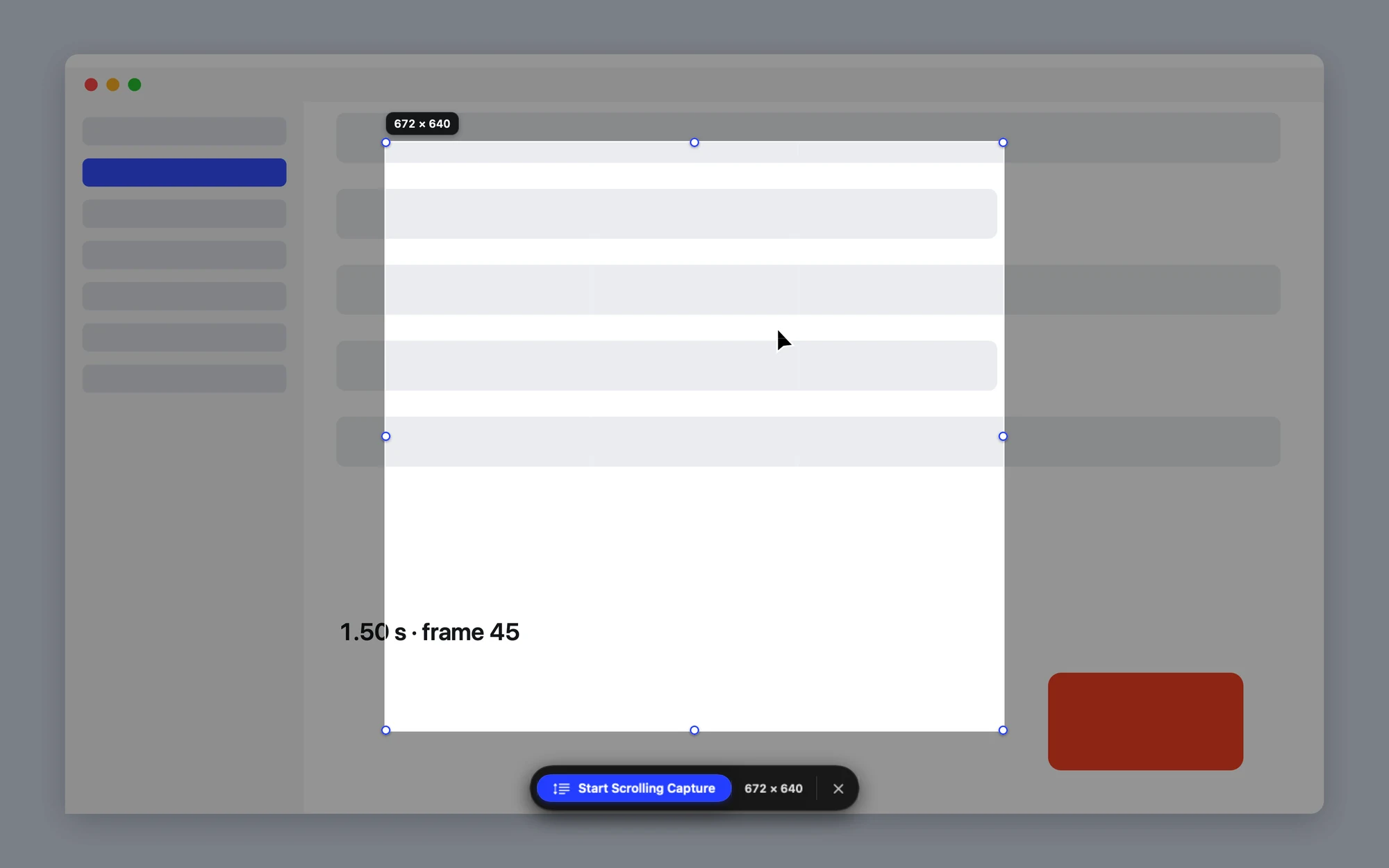
- Click a window, or drag over just the part that scrolls, such as a chat or a web page. Press ↩ or Start Scrolling Capture.
- Scroll with the trackpad or mouse inside the outline. A live preview shows the stitched strip; if it says “Scroll a little slower”, slow down.
- Or click Auto-scroll and let it scroll for you (asks for Accessibility the first time).
- Press ⏎ (or ⌥⇧L again) to finish. The tall PNG is copied, saved to History and ready to annotate.
Good to know
Start at the top: content above where you started isn’t captured. Sticky headers and footers appear once, at the top and bottom. Horizontal scrolling isn’t supported, and videos or parallax effects inside the region can confuse stitching. The height is capped at 30,000 px by default (10,000–50,000 in Settings).
How the tools compare
| Tool | Scrolling capture | Works outside the browser |
|---|---|---|
| macOS built-in | No | — |
| Chrome DevTools | Yes | No |
| Zinxo | Yes (⌥⇧L) | Yes |
| CleanShot X | Yes | Yes |
| Shottr | Yes | Yes |
| Xnapper | No | — |
Zinxo: $29 once (regular $39), 1 Mac, 1 year of updatesCapture, hand-drawn markup, 3D mockups, scrolling capture, recording to MP4 or GIF, OCR search and agent handoff in one native Mac app. One price, no subscription.